Work Hours Tab
The work hours tab enables you to add a set of worh hours for a specific employer. You can add multiple work hours for a single employer. This includes adding a starting time, ending time, price on hourly basis, rest allocated and a name to distinguish the work hours.
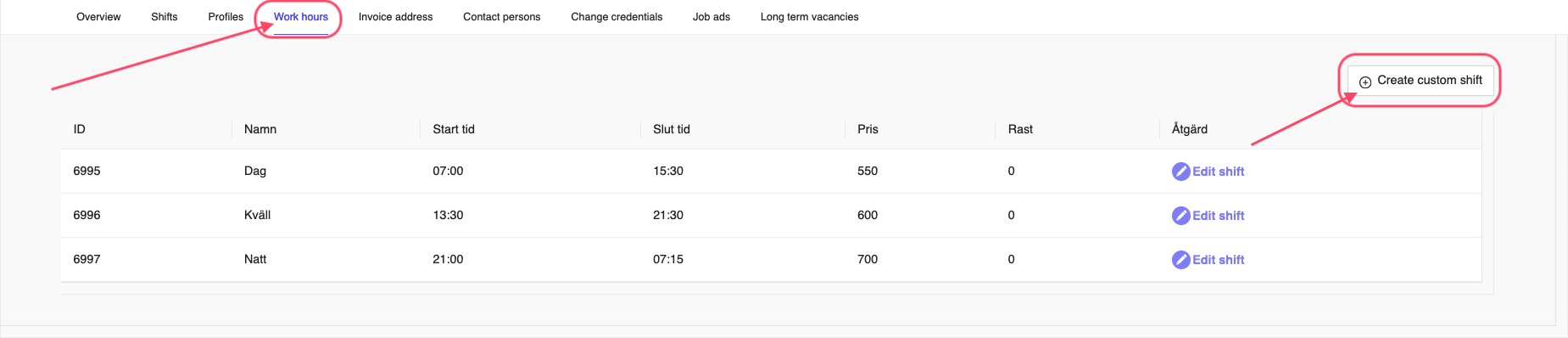
Figure 1: Employer Work Hours
Add Work Hours
To add work hours(also called as custom shift hours), you can click the Create custom shift button on the top right corner of the page. This will open a window where you can add the details of the work hours. See Figure 1.
Once you click on the button, you will see a window as shown in Figure 2. Here you can add the details of the work hours. You can add the name of the shift, starting time, ending time, price on hourly basis and rest allocated. Once you have added the details, click on the Spara button to save the work hours or Avbryt to cancel the operation.
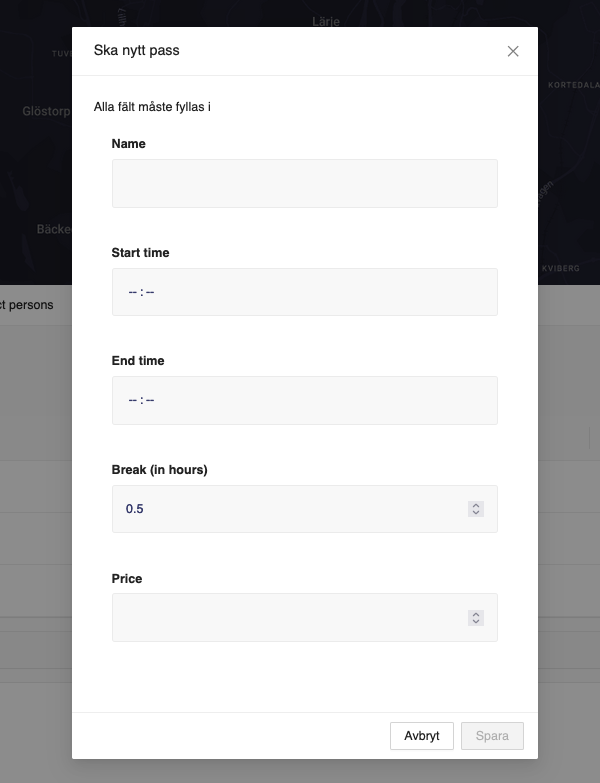
Figure 2: Employer Work Hours Add
Edit Work Hours
To edit the work hours, you can click on the Edit button on the right side of the work hours. This will open a window where you can edit the details of the work hours. The fields are similar to the add work hours window. Once you have edited the details, click on the Ok button to save the work hours or Cancel to cancel the operation.
Delete Work Hours
Unfortunately you cannot delete the work hours. You can only edit the work hours. If you want to delete the work hours, you can edit the work hours and remove the details and save the work hours.