Profiles Tab
The profile tabs allow you to view and manage the job profile type which you are looking for. This is the type you select while creating a shift posting. Profile can be a nurse, doctor, or any other type of consultant.
A sample profile is also shown in the figure below. You can also add the description of the profile type and the qualifications required for the profile type, drivers license requirements, and additional informations.
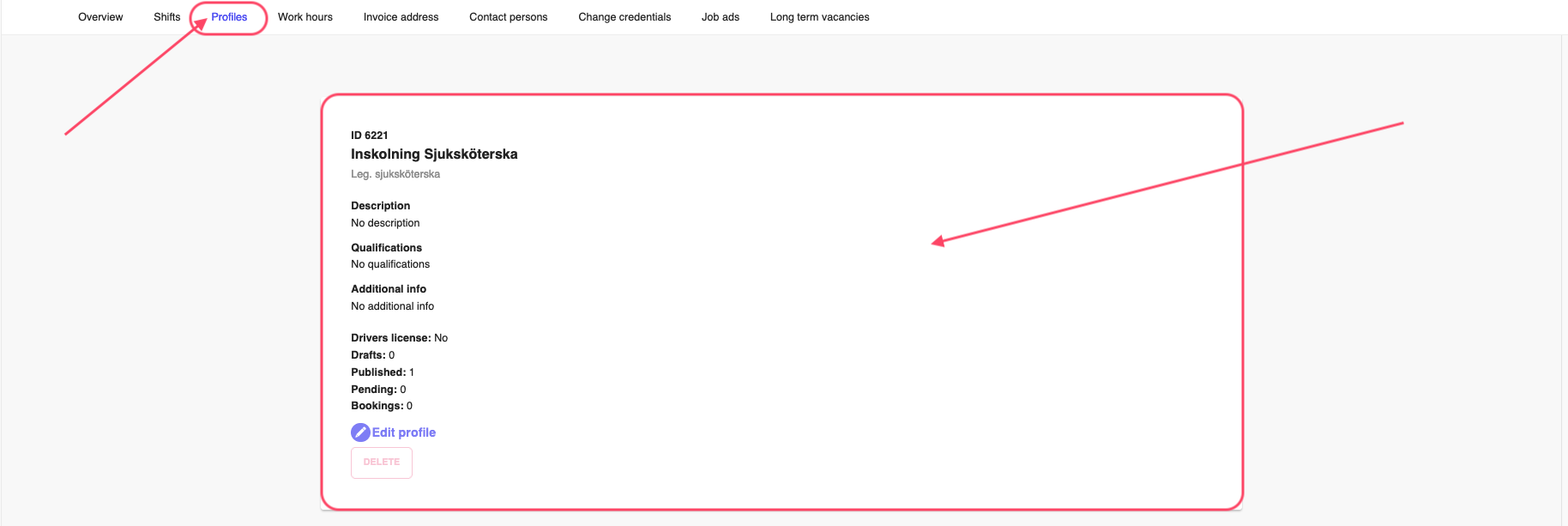
Figure 1: Profiles Tab
Adding a Profile
By default, you will be having a profile, which you might have already added while creating a new employer in the system. You can add more profiles by clicking on the "New Profile" button at the bottom of the page.
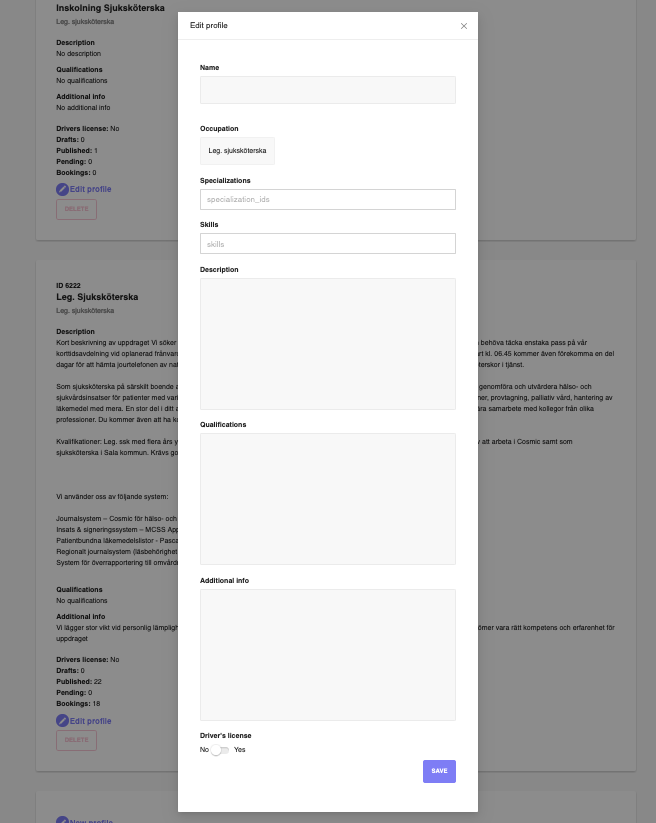
Figure 2: Add/Edit Profile
The available fields are for adding a new profile are:
- Name: The name of the job type, you can add the same name as you select the Occupation field.
- Occupation: The occupation of the profile type, you have multiple options to select from.
- Specialization id: The specialization ids required from the profile type, not mandatory.
- Skills: The skills required for the job type.
- Description: A brief description of the job type.
- Qualifications: The qualifications required for the job type.
- Additional Information: Any additional information about the job type.
- Drivers License: The drivers license requirements for the job type, you can either enable or disable the drivers license requirements.
Once you filled in all the details, click on the "Save" button to save the profile type.
Editing a Profile
You can also edit the profile type by clicking on the "Edit Profile" button for a corresponding profile type. The fields are similar to the "Add Profile" fields as shown in Figure 2. Once you have made the changes, click on the "Save" button to save the changes.
You will be able to see a warning message like Job profile is in use. There are some booked shifts associated, if you try to edit a profile that is already in use. You can still edit the profile, and the changes will be reflected in the existing shift postings as well.
Deleting a Profile
You can delete a profile by clicking on the Delete button for a corresponding profile type. You will be asked to confirm the deletion, click on the Yes button to delete the profile type or click on the No button to cancel the deletion.
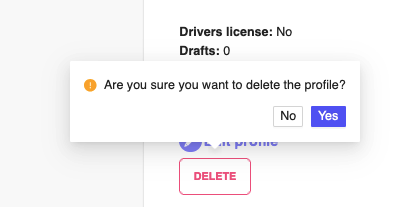
Figure 3: Delete Profile
Deleting a profile will delete the profile type from the system, and you will not be able to recover the profile type once deleted.