Uploads Tab
The uploads tab is used for managing the uploads of the consultants. The page contains a list of all the uploads of the consultants. Uploads can be of different types such as CV, ID, License, to profile picture, etc. The admin users can view the uploads of the consultants, add any extra documents collected from the consultant, modify the uploads, and delete the uploads.
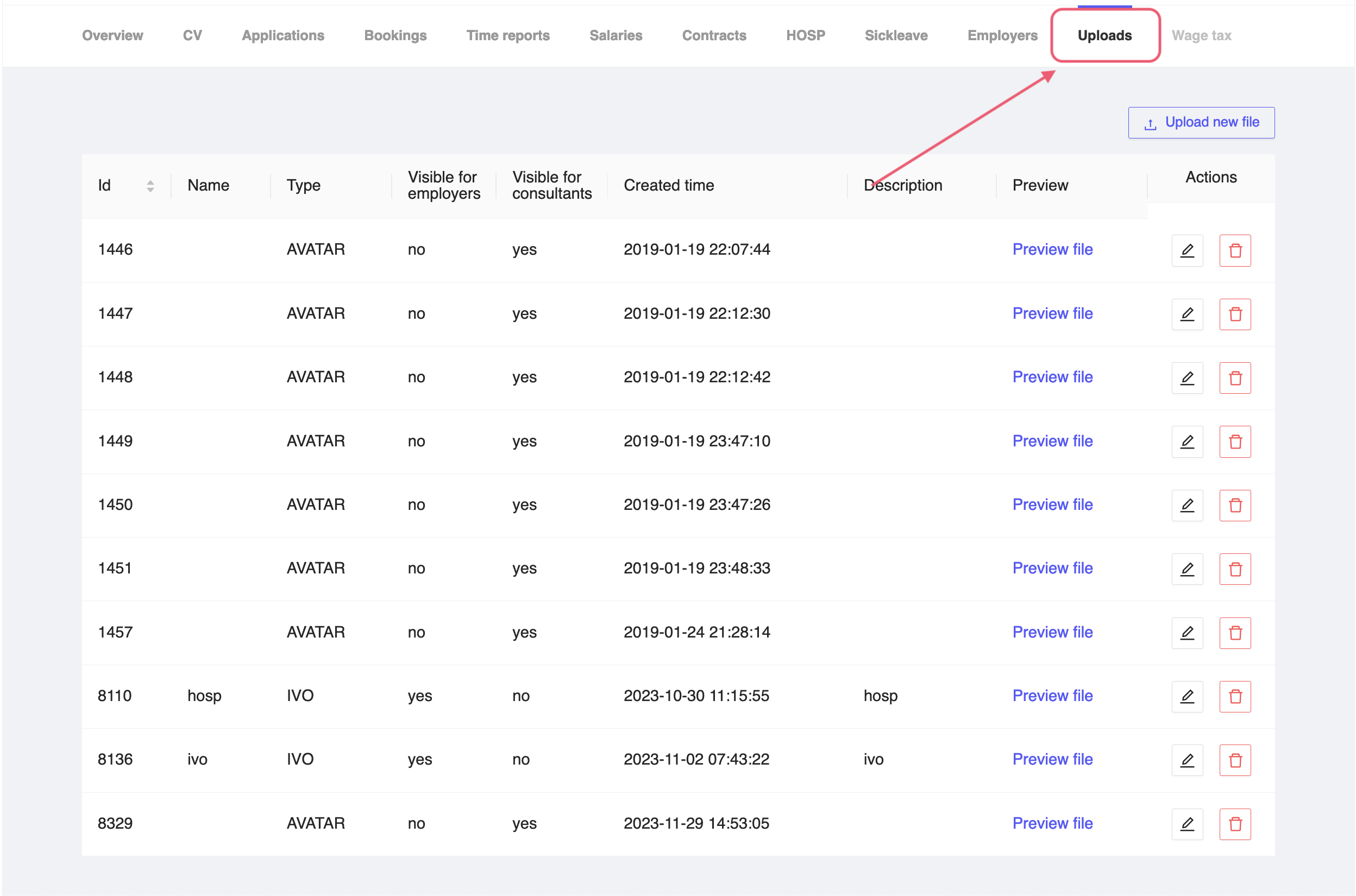
Figure 1: Consultant Uploads Tab
Upload new document
To upload a new document, click on the Upload new file button on the top right corner of the page.
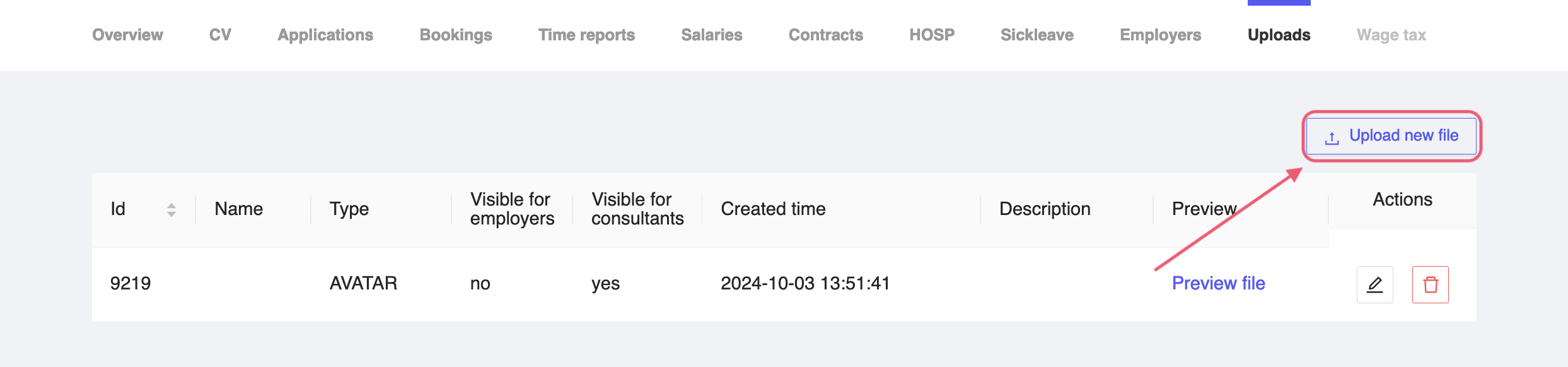
Figure 2: Upload new document
This will open a window where you can add a name for the document, add a description on what the document is for, enable/disable whether the documents should be visible to the consultant, enable/disable whether the documents should be visible to the employer, and the file that should be uplloaded. You can upload the document by clicking on the Upload new file button. Once you are done with the upload, you can click on the Save button to save the document or click on the Cancel button to cancel the upload.
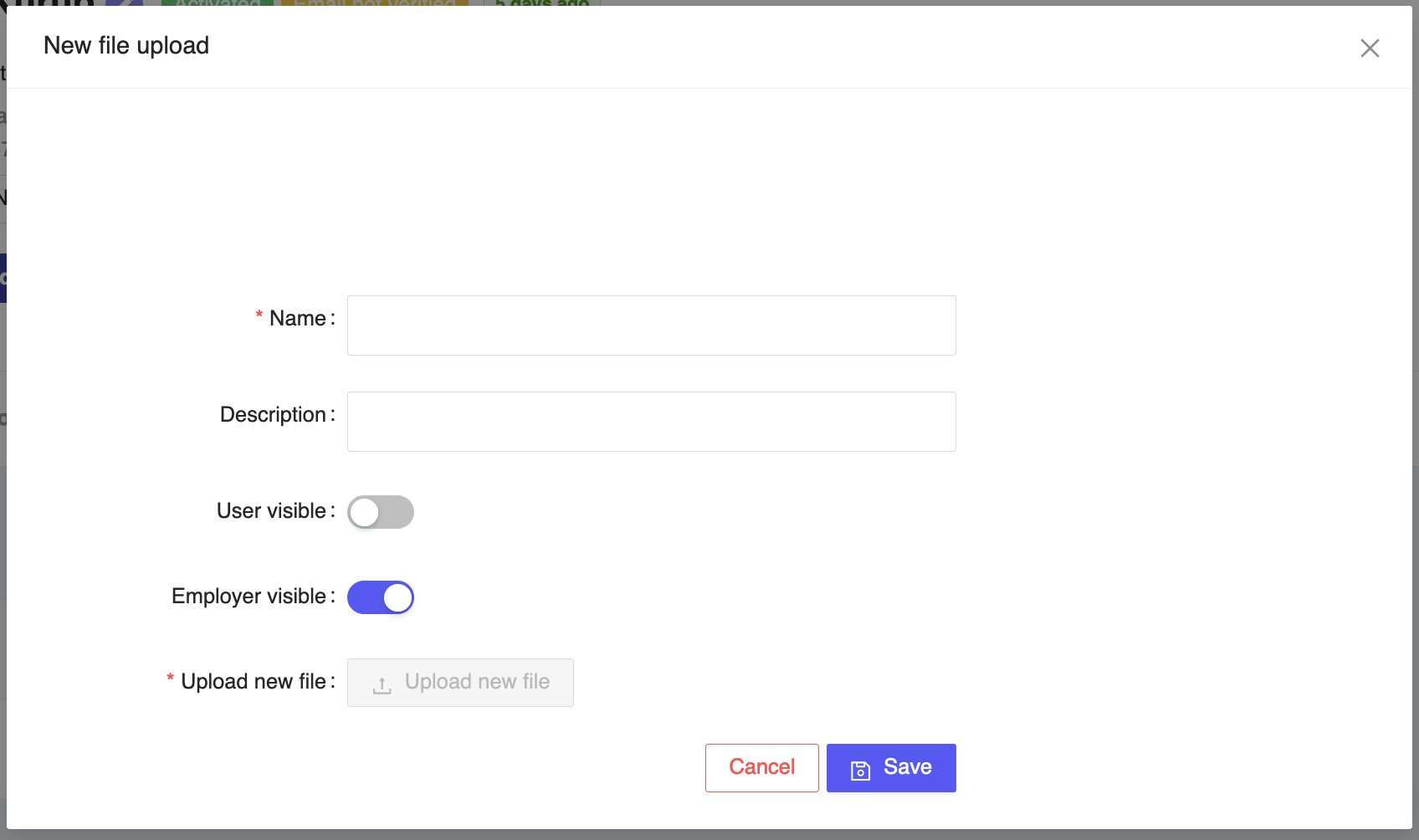
Figure 3: Add new document window
The uploaded document will be visible in the list of uploads on the uploads tab.
Edit document
To edit a document, click on the Edit button (pencil icon) on the right side of the document.
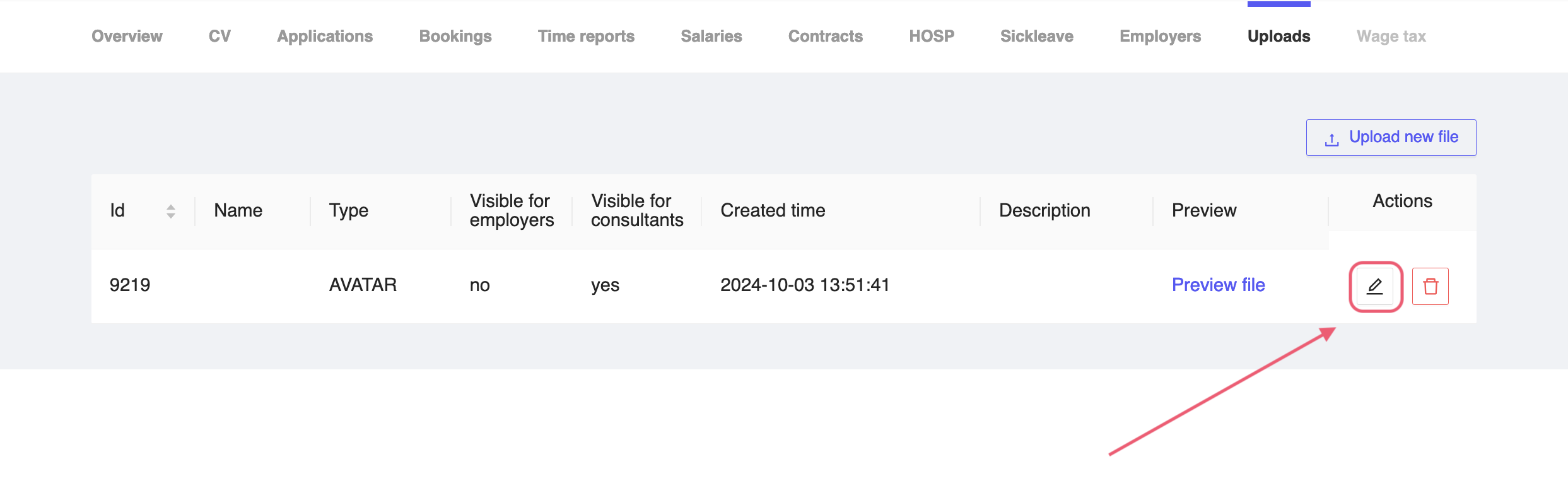
Figure 4: Edit document
This will open a window where you can edit the name of the document, the description of the document, whether the document should be visible to the consultant, whether the document should be visible to the employer, and the file that should be uploaded. You can upload the document by clicking on the Upload new file button. Once you are done with the edit, you can click on the Save button to save the document or click on the Cancel button to cancel the upload.
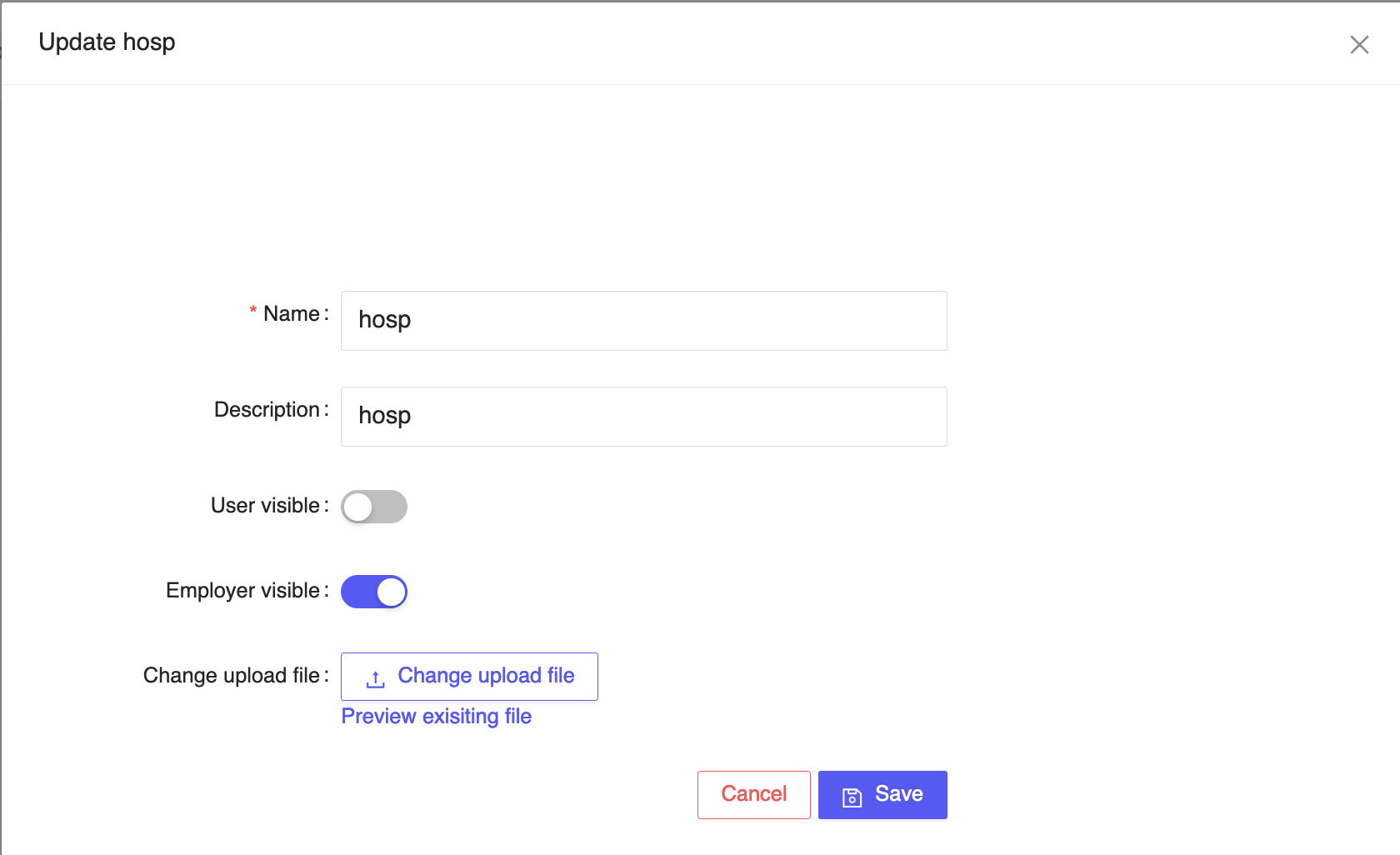
Figure 5: Update existing document
You also have the ability to preview the previous document prior to editing it by clicking on the Preview existing file button.
Delete document
Deleting a document is a permanent action and cannot be undone. Make sure to contact the consultant before deleting the document.
To delete a document, click on the Delete button (trash icon) on the right side of the document. This will delete the document from the system and the document will not be visible in the list of uploads on the uploads tab.
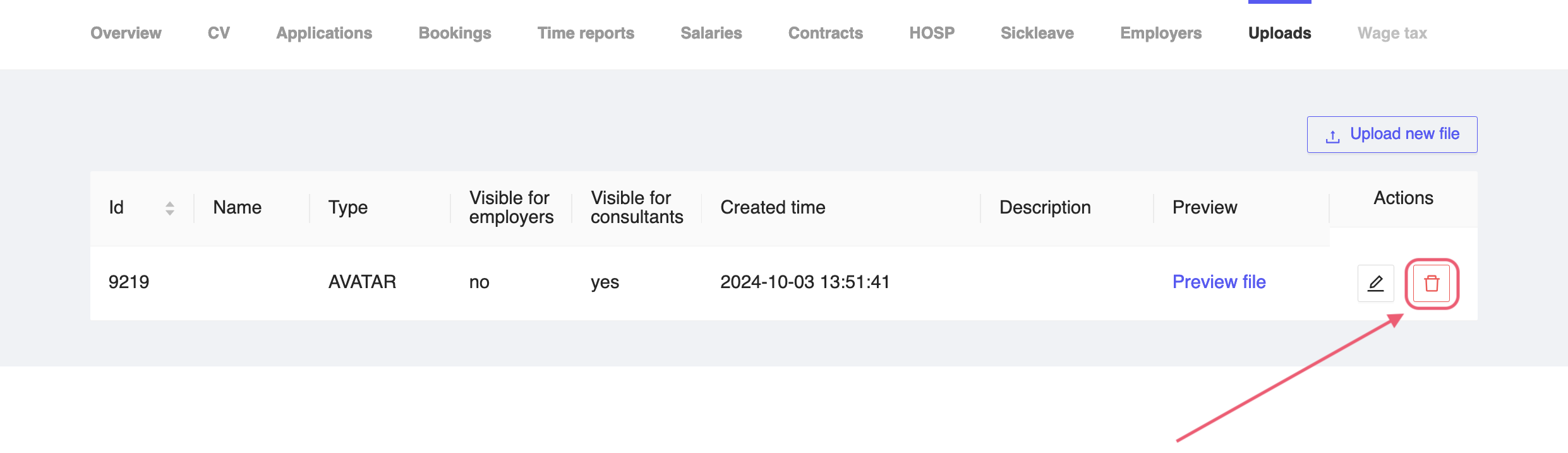
Figure 6: Delete document
You will be prompted with a confirmation window to confirm the deletion of the document. Click on the Confirm Deletion button to confirm the deletion of the document or click on the Cancel button to cancel the deletion.
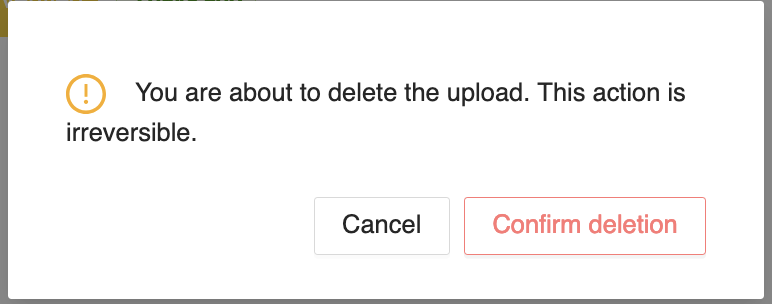
Figure 7: Delete document confirmation
Preview document
To preview a document, click on the Preview file button on the corresponding document. This will open a new tab with the preview of the document. You can view the document and download the document from the preview window.
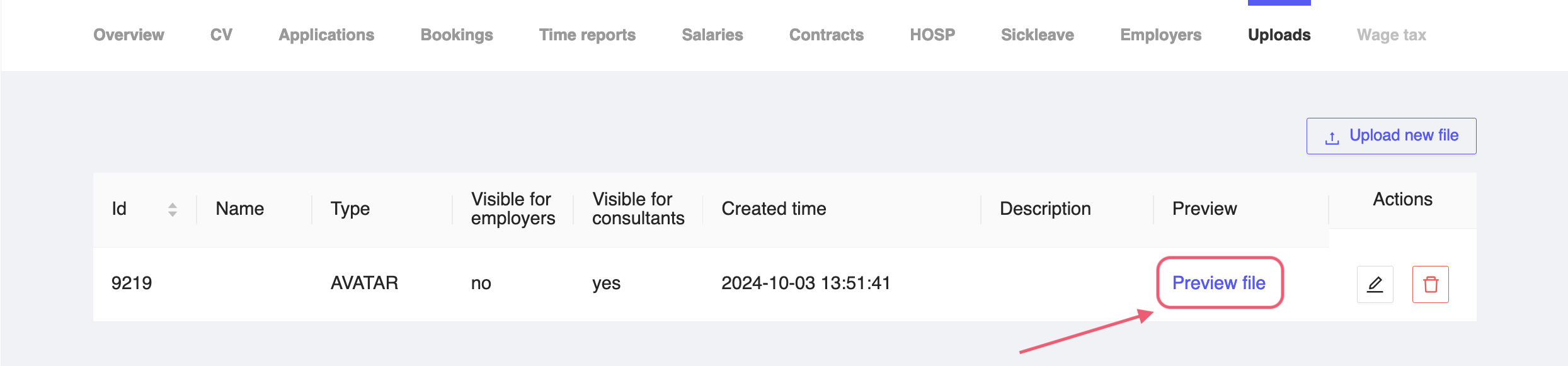
Figure 8: Preview document