Salaries Tab
The salaries tab is used for managing the salaries of the consultants. The page contains a list of all the salaries of the consultants, if the consultant has worked on shifts LTV's in the past. The admin users can view the salaries of the consultants.
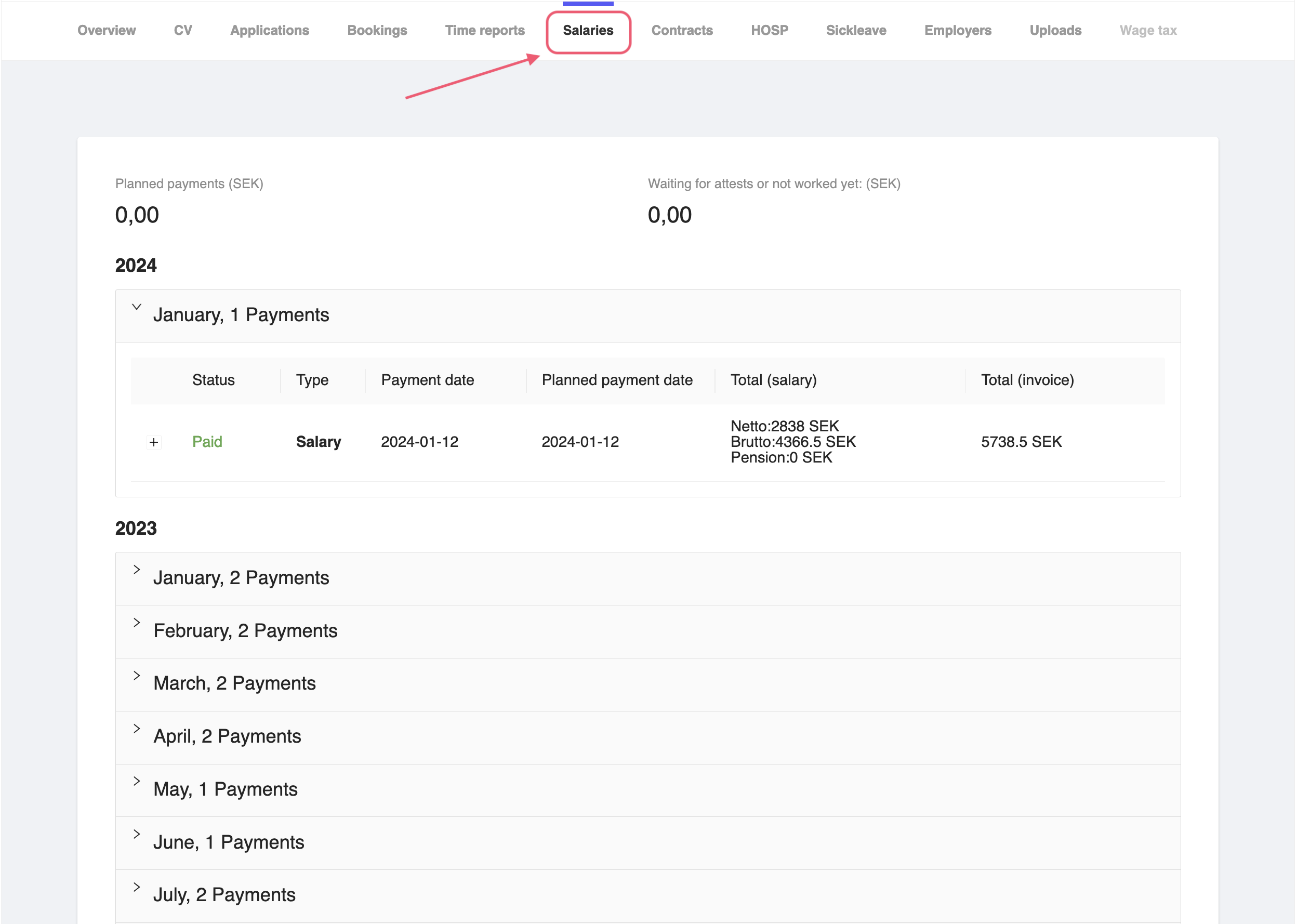
Figure 1: Consultant Salaries Tab
Salary Summary
The salary tab will show the salary summary for any planned payments as well as any payments that are waiting for attestation from the admin user. Once the attestations are done, the salary will be show in the planned payment, if the salary needs to be paid out, otherwise, planned payment will be 0,00 SEK.
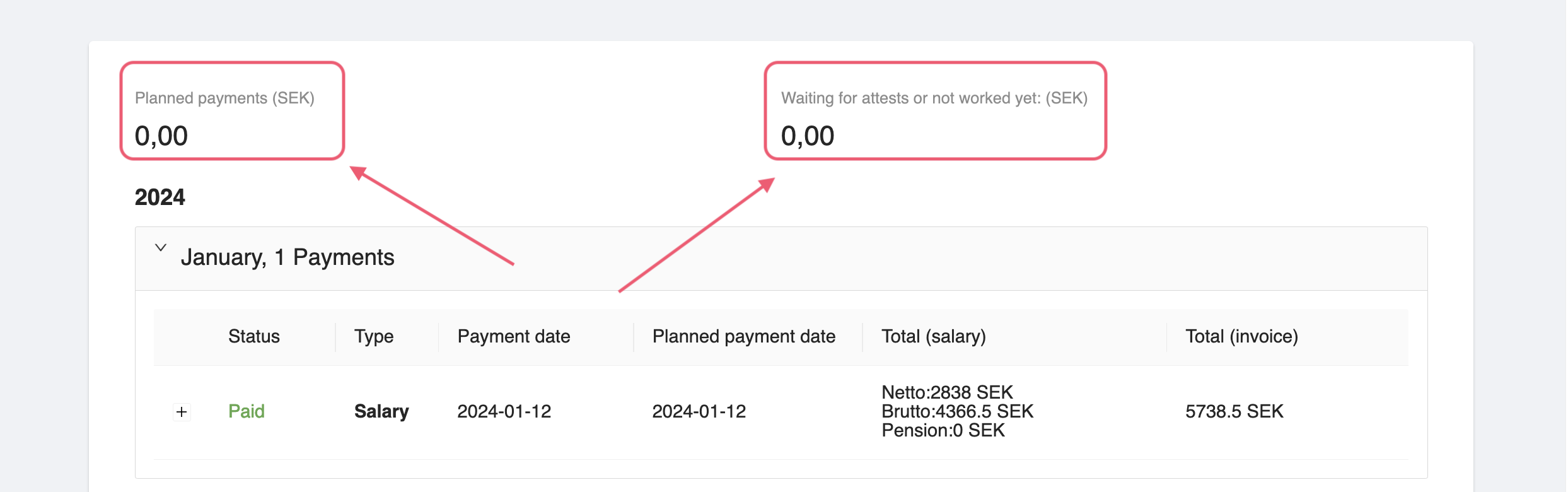
Figure 2: Consultant Salaries Summary
Salary Details
To view the details of a salary, click on the drop button on the left side of the salary month. This will expand the salary details for which the consultant has worked on shifts for.
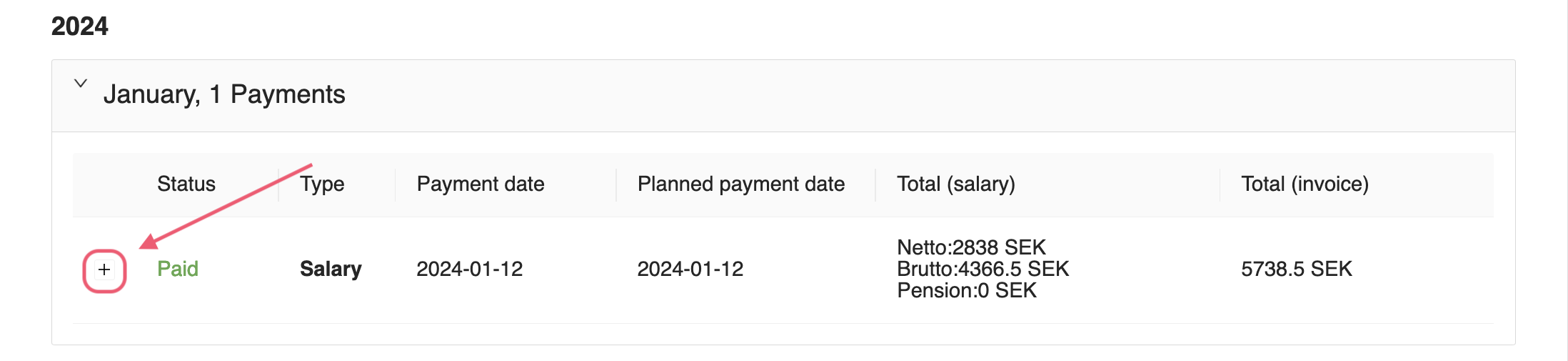
Figure 3: Consultant Salaries Paid
If the salary has been paid out, you will see a green text Paid in the Status column. If the salary has not been paid out, you will see a Pending status. To view the details of the paid salary, click on the + button on the left side of the salary. This will expand the salary details for which the consultant has worked on shifts for.
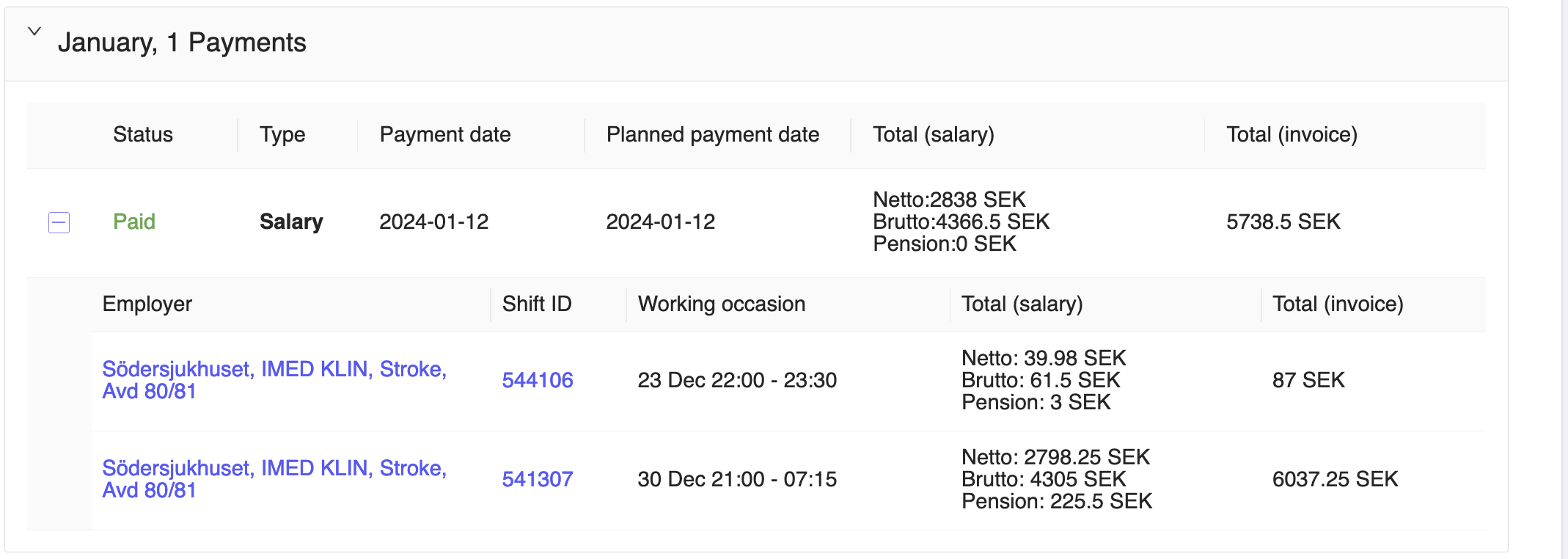
Figure 4: Consultant Salaries Paid Details
You will be able to see the details such as:
- Type - The type of the salary, if it's a salary or an invoice.
- Payment date - The date when the payment was made.
- Planned payment date - The date when the payment was planned to be made.
- Total (salary) - The total amount of the salary.
- Total (invoice) - The total amount of the invoice.
If the salary has been paid out, you will also see the following details as well in the details:
- Employer - The employer for which the consultant has worked for. You can click on the employer name to view the details of the employer as well.
- Shift ID - The shift ID for which the consultant has worked for. You can click on the shift ID to view the details of the shift as well.
- Working occasion - The working occasion for which the consultant has worked for. This will show the start and end date of the working occasion along with timing.
- Total (salary) - The total amount of the salary. Includes Netto, Brutto and Pension.
- Total (invoice) - The total amount of the invoice. Total of the Total (salary)
Unfortunately, the admin users are not able to add, edit or delete the time salaries from the admin panel. The salariess are created by the system based on the shifts created by the employer.