Bookings Tab
The booking tab showcases a calendar view of the consultant's bookings. The admin user can view the bookings of the consultant on a monthly basis. You have the ability to view the past and upcoming bookings of the consultant. View the employers who have booked the consultant and the details of the booking.
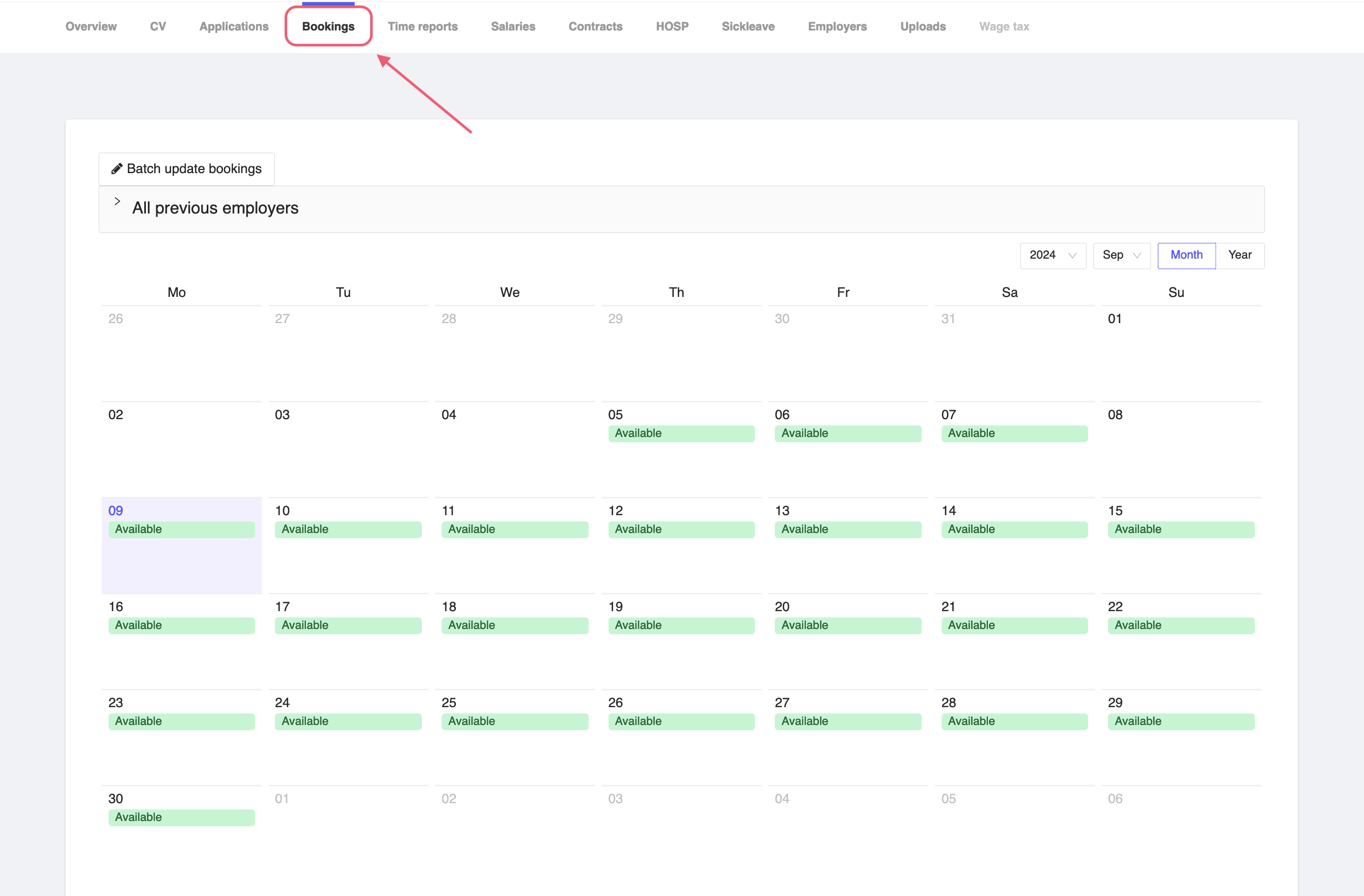
Figure 1: Consultant Bookings Tab
Booking availability
In the calendar view, you will be able to see Available with a green background. This indicates that the consultant is available for the booking for those specific days. The admin users can book the consultant for the available slots depending upon the availability of the consultant.
See previous employers
If you click the All previous employer dropdown on the top left corner of the page, you will be able to view the list of all the employers who have booked the consultant in the past. You can click on the employer name to view the details of the employer as well.
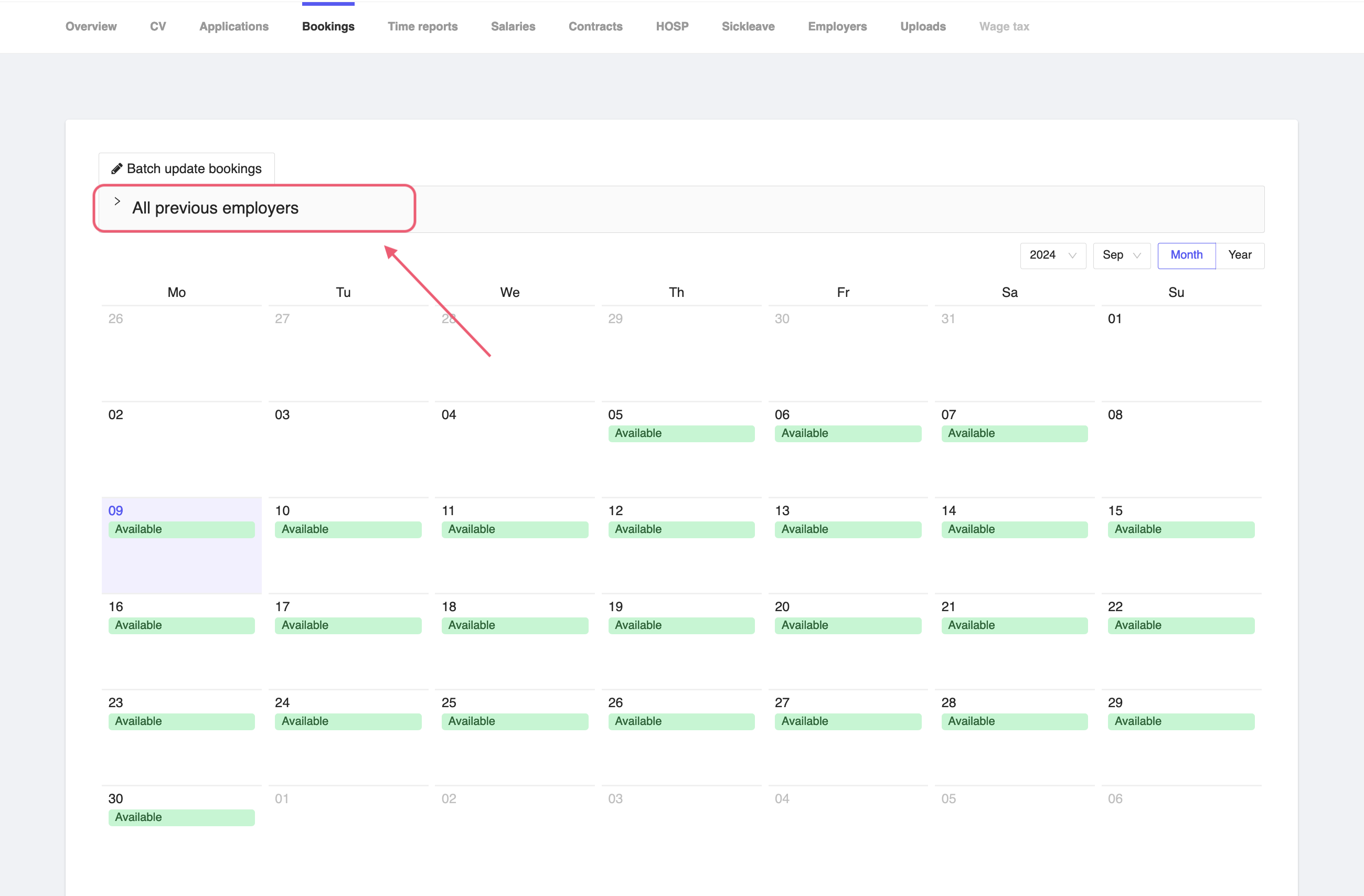
Figure 2: Consultant Previous Employers
Moreover, you can find how many shifts the consultant has worked for the employer.
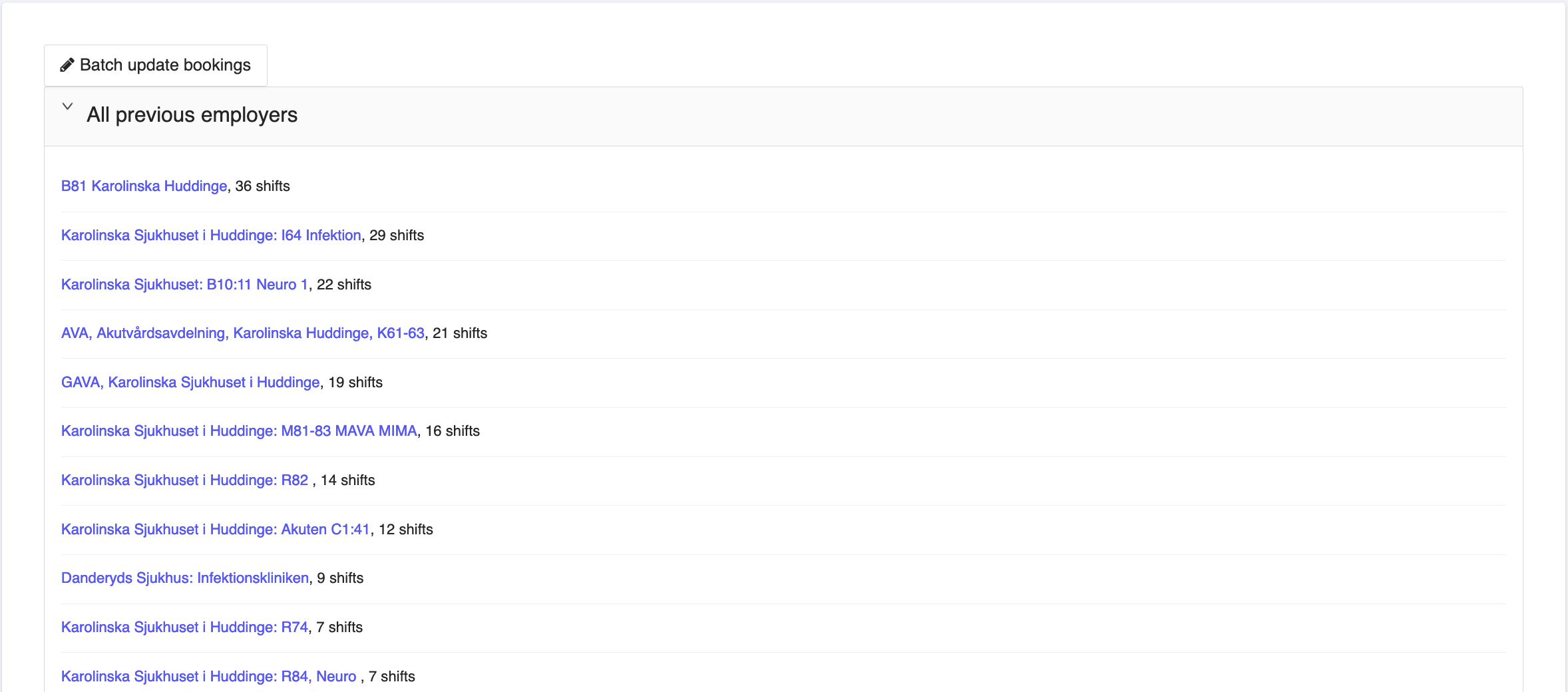
Figure 3: Consultant Previous Employers Shifts
Bookings details
To view the details of a booking, click on the booking slot in the calendar. You will be able to distinguish what type of booking it is, whether it's a Day, Evening, Night using the icon on the particular booked date.
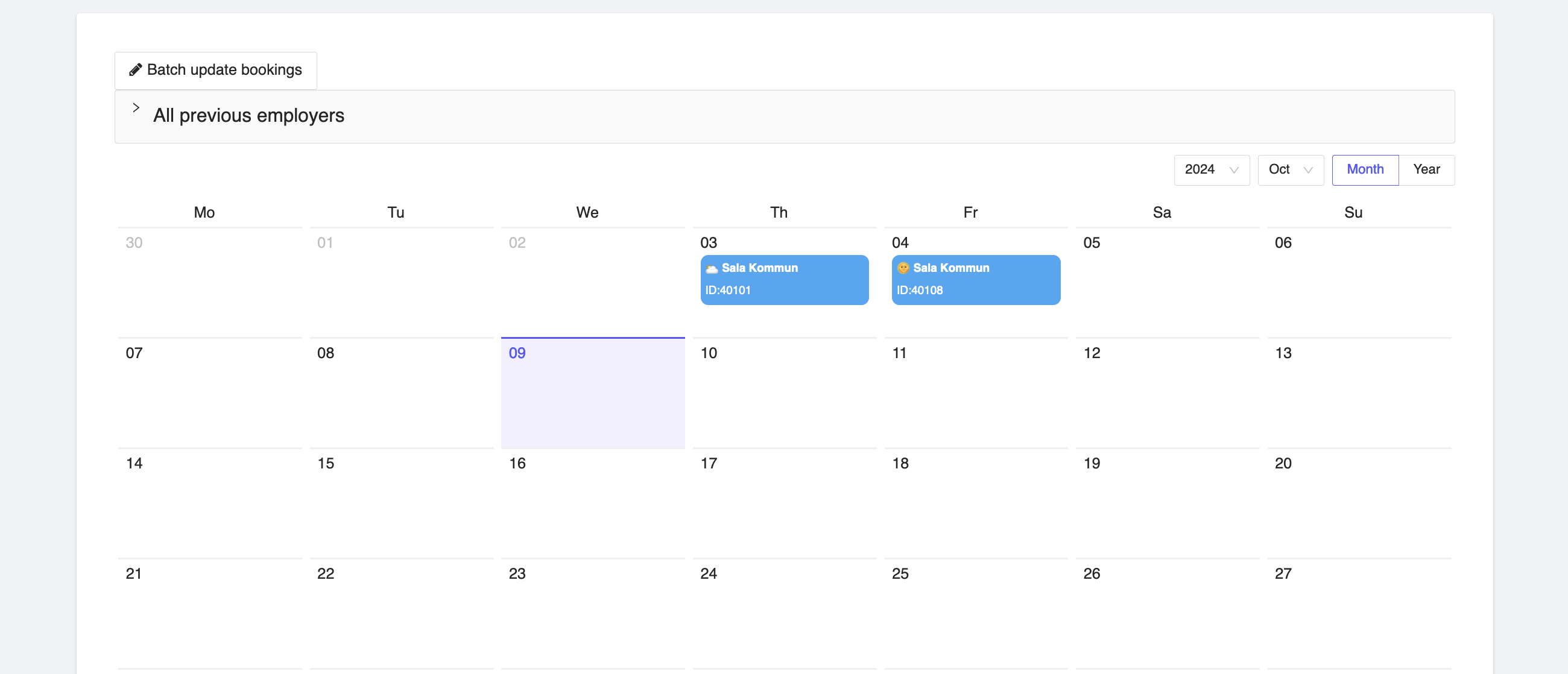
Figure 4: Consultant Shifts Calendar
If you click on the booked shift event, you will get a window where you will be able to view the details or delete the shift booking.
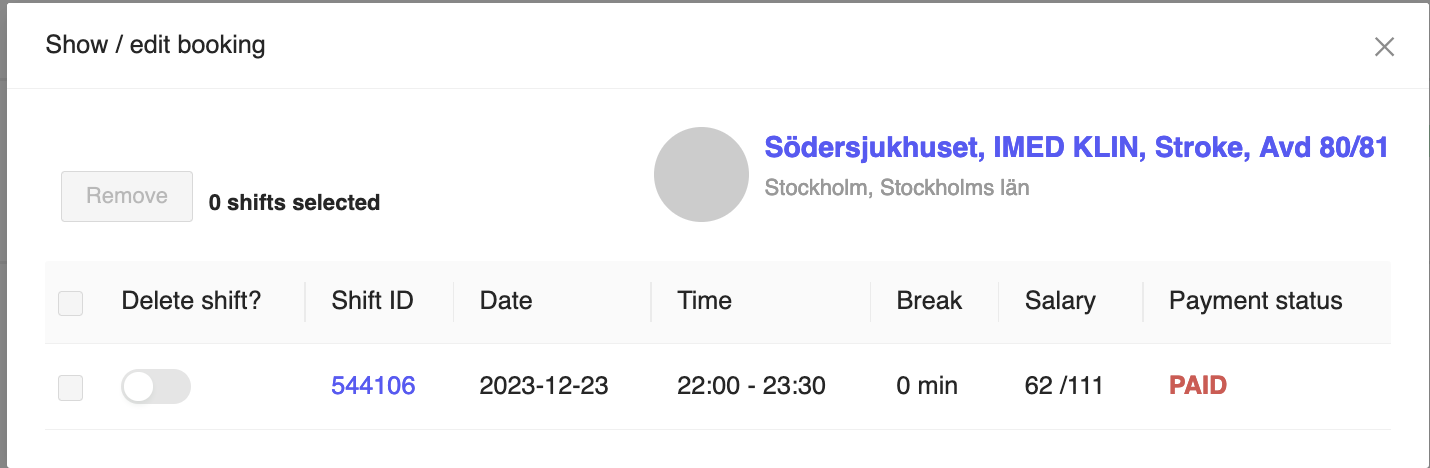
Figure 5: Consultant View Shift / Delete Shift
Past bookings
If you go down the page, you can find month wise dropdown for viewing details about shifts. This will expand the booking details for which the consultant has worked on shifts for.
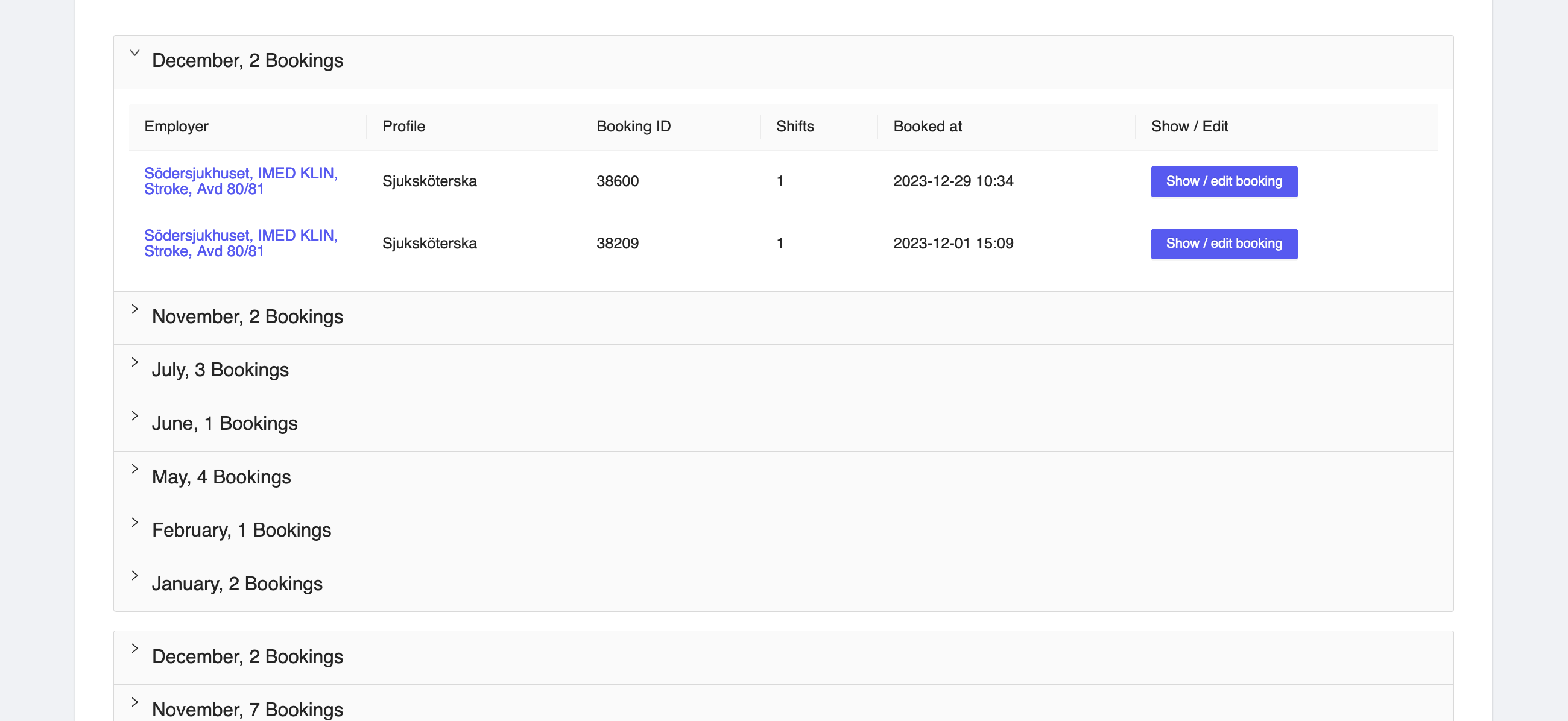
Figure 6: Consultant month wise booking and past bookings
You can view the details such as:
- Employer - The employer for which the consultant has worked for. You can click on the employer name to view the details of the employer as well.
- Profile - The profile of the consultant for which the consultant has worked for.
- Booking ID - The shift ID for which the consultant has worked for. You can click on the shift ID to view the details of the shift as well.
- Shift - The number of shifts the consultant has worked for.
- Booked at - The date when the booking was made.
- Show/edit booking - You can edit or view the booking from the system by clicking on button. This will show a window just like one shown in Figue 5.