Consultants
The consultants page is used for managing the consultants of the Medpeople. The page contains a list of all the consultants registered in the system. A variety of features are available for the admin users to manage the consultants.
The admin users can:
- View the list of consultants
- Edit consultant details
- Disable/Ban/Remove consultants from the system
Unfortunately, the consultants page cannot add new consultants. The consultants are added only through the mobile application by the consultants themselves.
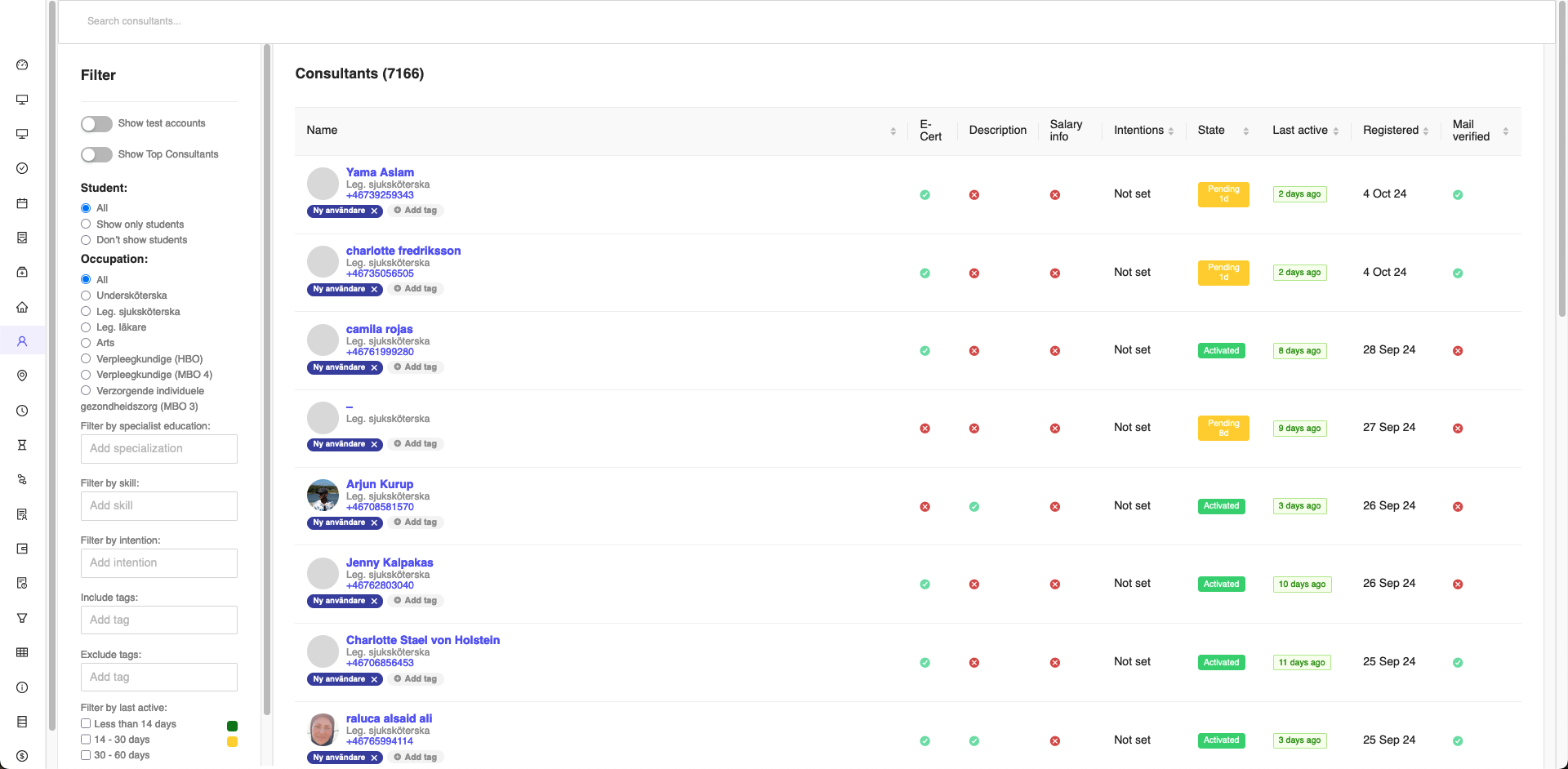
Figure 1: Consultants Page
View Consultants
In order to view the details of a consultant, you have two options:
1. Brief view
Click on the consultant card anywhere except the Name field, this will open a brief view of the consultant on the righ side of the page.
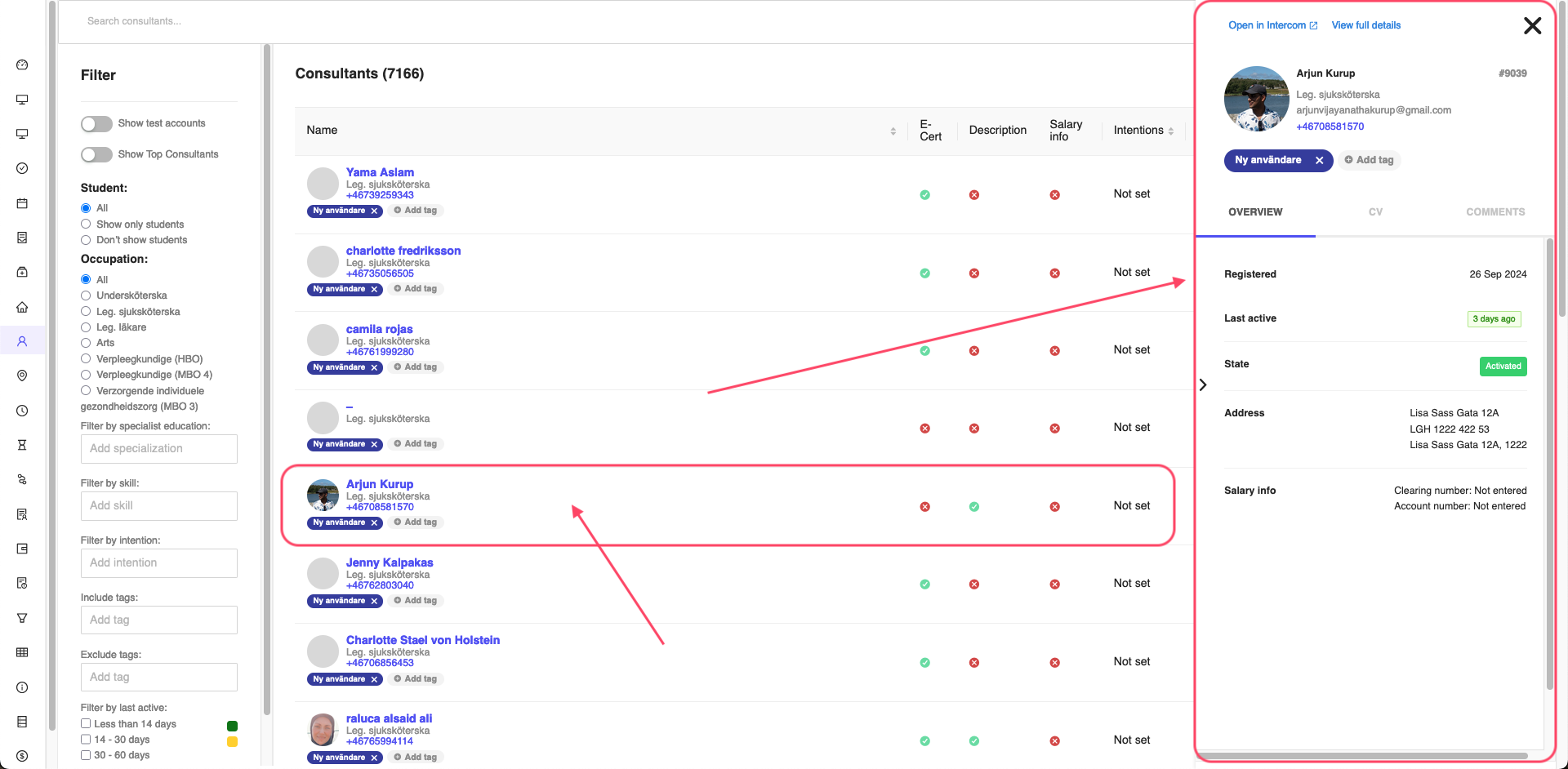
Figure 2: Consultant Brief View
Using this view, you can see the basic details of the consultant such as overview, CV, and comments along with contact details, tags, etc. This view is useful when you want to quickly view the details of a consultant without leaving the page and without opening a new tab.
You also have the ability to contact the consultant directly using intercom by clicking on the Open in Intercom button on the top right corner of the brief view.
2. Detailed view
Click on the Name field of the consultant card, this will open a detailed view of the consultant as a new page.
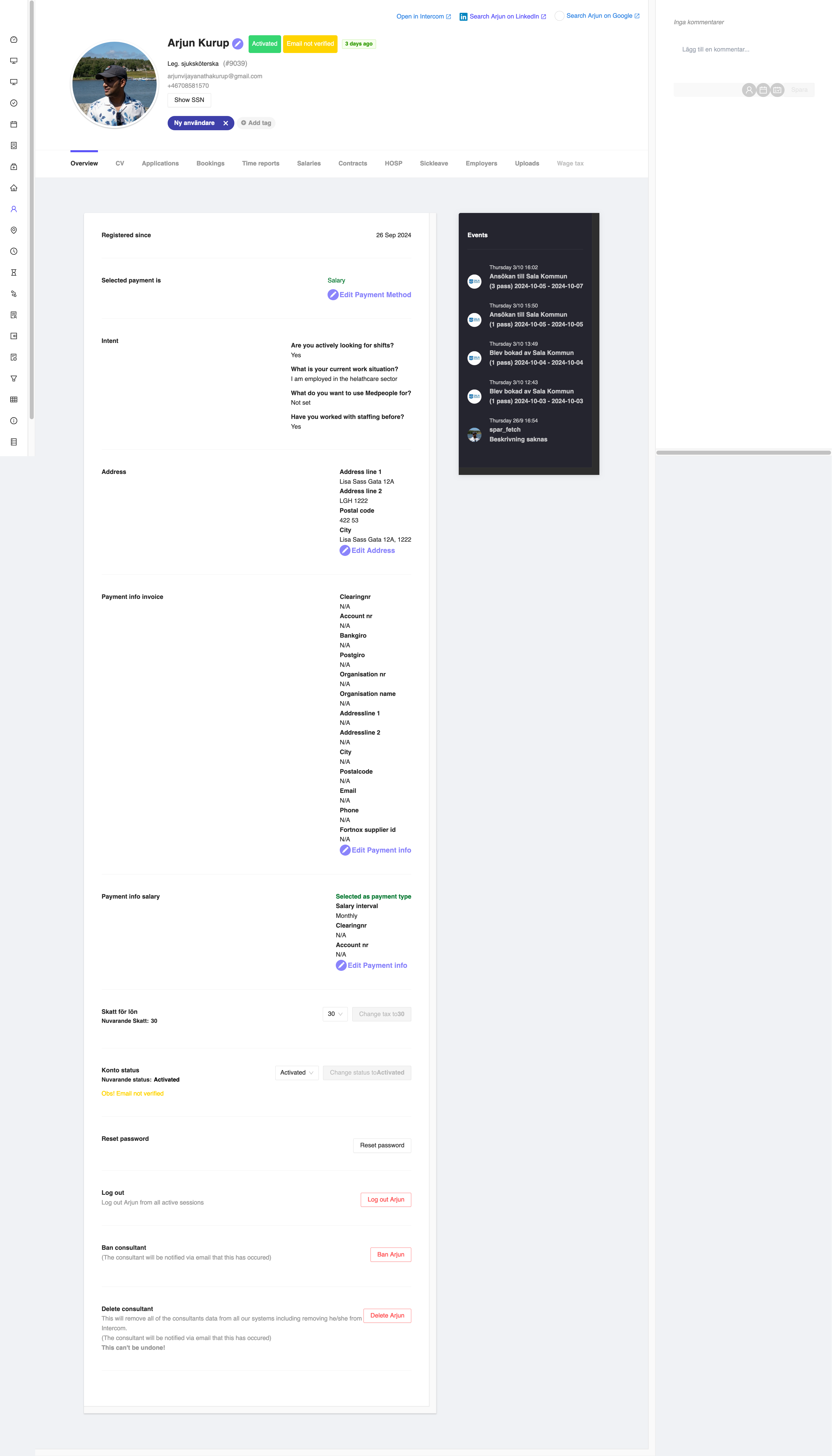
Figure 3: View consultant details
Using this view, you have more control over the consultant details.
The details comprises of the following sections:
- Registered since: The date when the consultant registered in the system.
- Selected payment is: The payment method selected by the consultant. If you click the
pencilicon, you have the ability to edit the payment method to eitherSalaryorInvoice. - Intent - The intent of the consultant. This is a read-only field and it is added by the consultant during the registration process.
- Address - The address of the consultant. You have the ability to edit the address by clicking the
pencilicon. But make sure to contact the consultant before changing the address. - Payment info invoice - The payment information of the consultant. This includes the bank account clearning number, account number, bankgiro, postgiro, organizaiton number, organization name, address for the invoicing, email address, phone number and fortnox supplier id. You have the ability to edit the payment information by clicking the
pencilicon. This will open up a window where you can edit the payment information. - Payment info salary - The payment information of the consultant. This includes the salary interval, clearning number, account number. You have the ability to edit the payment information by clicking the
pencilicon. This will open up a window where you can edit the payment information. - Skatt för lön - The tax percentage of the consultant. You can change the tax percentage by selecting a percentage from the dropdown. Once you do that, make sure to click the
Change tax to <amount>button on the right side of the dropdown. - konto status - The status of the consultant account. This can be change depending upon how you want to manage the consultant account. You have the option to change it to
Pending,Activated,BanandTemp ban. Once you change the status, make sure to click theChange status to <status>button on the right side of the dropdown. - Reset password - You can reset the password of the consultant by clicking the
Reset passwordbutton. This will send an email to the consultant with a link to reset the password. - Log out - You can log out the consultant from the system by clicking the
Log out <consultant name>button. This will log out the consultant from all the devices. - Ban consultant - You can ban the consultant from the system by clicking the
Ban <consultant name>button. This will ban the consultant from the system and the consultant will not be able to login to the system. The consultant will be notified via email about the ban. - Delete consultant - You can delete the consultant from the system by clicking the
Delete <consultant name>button. This will delete the consultant from the system and the consultant will not be able to login to the system. The consultant will be notified via email about the deletion.
Deleting a consultant is a permanent action and cannot be undone. Make sure to contact the consultant before deleting the consultant from the system.
Events
In the consultant details page, you can view the events that the consultant has been doing. This includes booking, cancelation, and other events. You can view the events by clicking the Events tab on the top of the page.
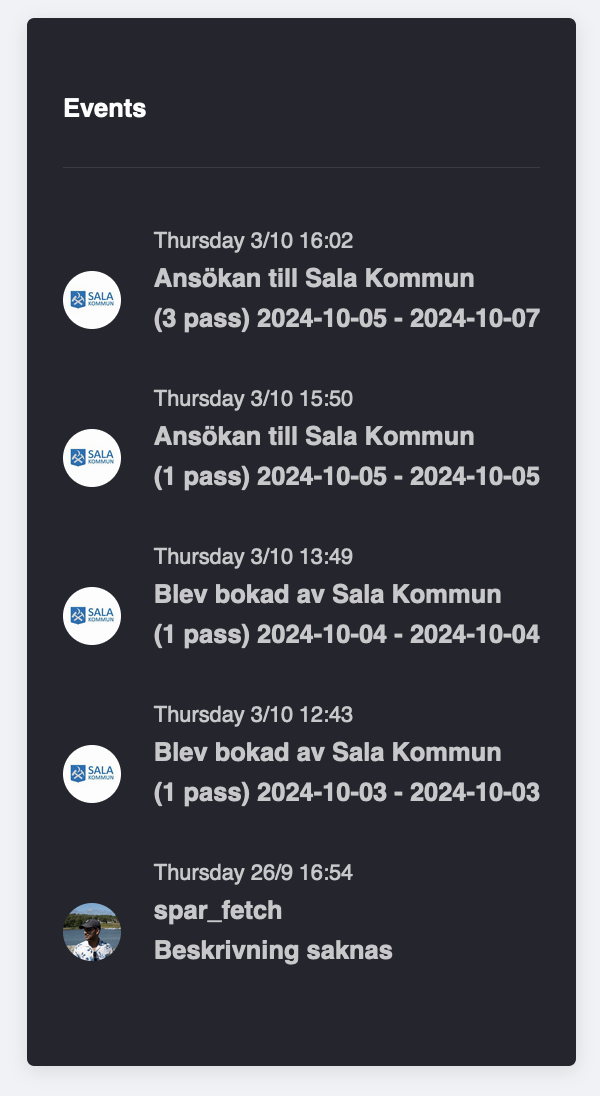
Figure 4: Consultant Events View
Comments
In the right side of the detail view window of the consultant, you have the ability to add comments about the consultant for other admins to know about. You can add comments by clicking the Lägg till en kommentar.. on the detail view window. Here you will be able to type information about the user, maybe information regarding some due dates, or add a planned date to contact the consultant etc. Once you are done with adding the required information you can click the Spara button which will save the comment.
You have to option to either select the user who is creating the comment or discard that. By default the admin using this feature's username will be added.
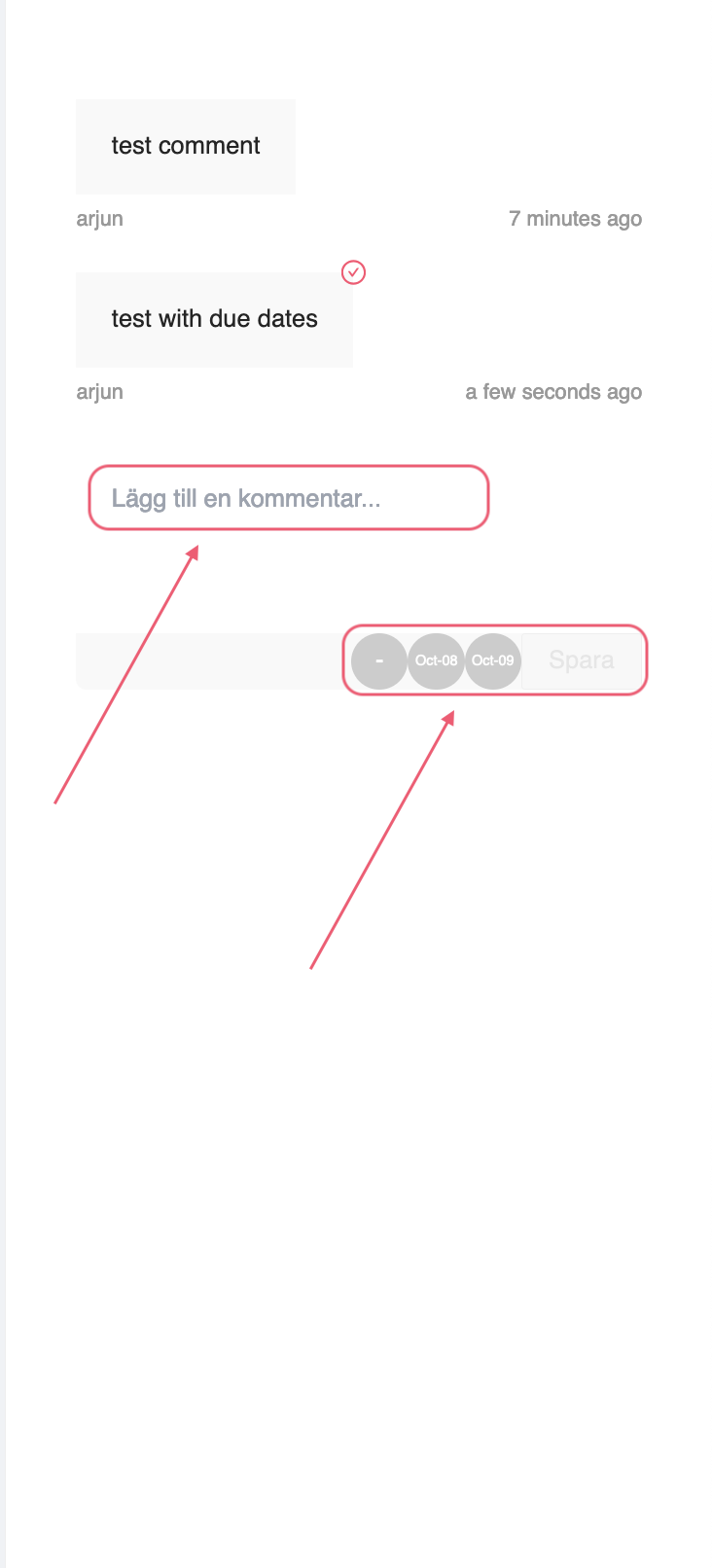
Figure 5: Consultant Comments View
Comments are only for internal use and the consultants won't be able to see it. Make sure to add only relevant information about the consultant. The window will also be visible for the entire consultant pages as well.