Filters & Search
Sometimes, filters will be available in Dutch or other languages apart from Swedish and English. This is because the application was available previously in Netherlands, Poland etc. However, the application is now only available in Sweden.
If one of the filter is not explained below, it means that the filter is for another country and is not applicable in the Swedish application.
These filters will be disabled and will not be available in the future.
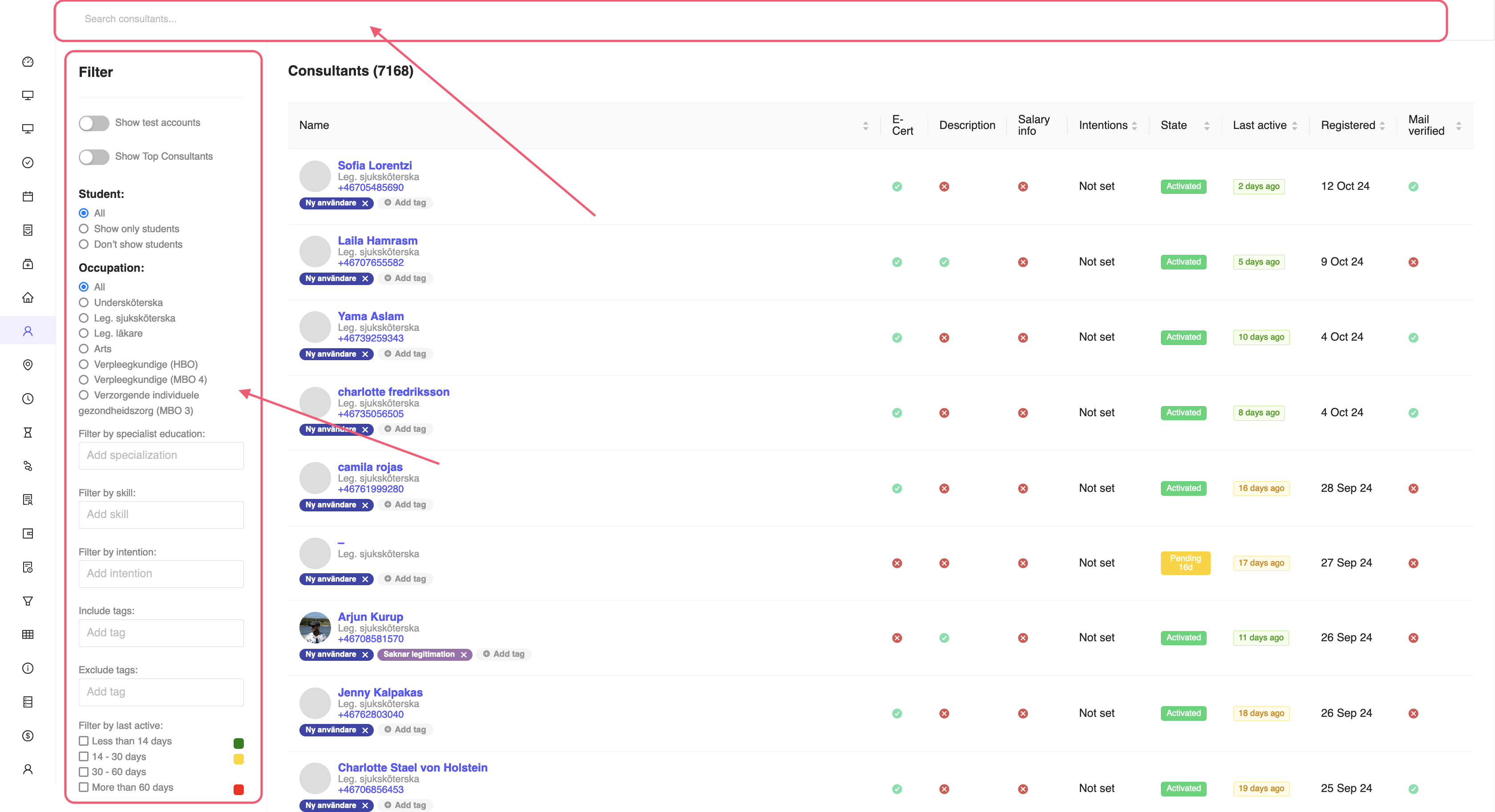
Figure 1: Filters and Search bar. Differs from page-to-page.
Search
In the medpeople application, you will be able to see the search bar on the top of the page. This search bar is used to search for the consultants, employers in the application. You can search for the consultants using the name, email and consultant id. This is useful when you want to search for a specific consultant or employer in the application.

Figure 2: Search bar sample.
Filters
In the medpeople application, you will be able to see various filters which can help you as an admin to narrow down to retrieve the required informations from the database. Sometimes, viewing the web application can be overwhelming with the amount of data showing, hence you can add filters to remove unnecessary data. Another functionality of the filter is the ability to view regional and county wise information if you are a counsultant manager.
You can advance the filtering by using multiple filters at the same time. For example, you can filter the consultants based on the occupation and the specialist education at the same time. This is useful when you want to see the consultants in the application based on the occupation and the specialist education.
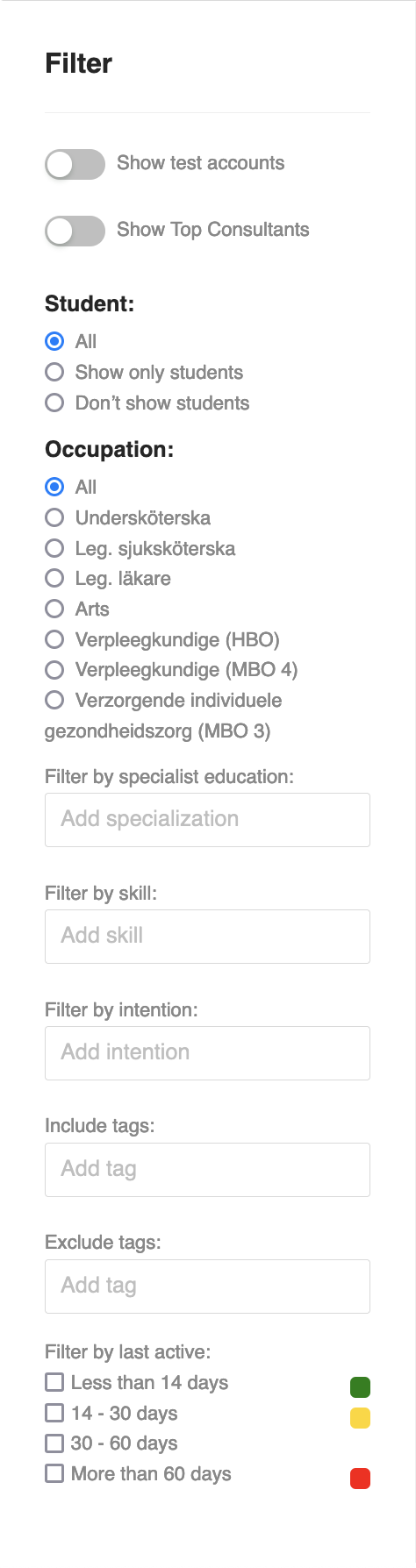
Figure 3: Consultant Filter sample. Differs for other pages.
Depending upon the pages, and the usability, the filters will be different. Below are the list of filters available in the application:
Show test accounts
This filter will show the test users in the application. This is useful when you want to see the test users in the application, and this is used mainly by the developers.
Show Top Consultants
This filter will show the top consultants in the application. This is useful when you want to see the top consultants in the application, and this is used mainly by the consultant managers.
Student
- All - This filter will show all the student consultants as well as regular consultants. This is useful if you want to see all the consultants in the application.
- Show only students - This filter will show the student consultants in the application. This is useful when you want to see the student consultants in the application.
- Don’t show students - This filter will not show the student consultants in the application. This is useful when you want to see the regular consultants in the application.
Occupation
- All - This filter will show all the consultants in the application belonging to different occupations.
- Undersköterska - This filter will show the consultants in the application belonging to the occupation of Undersköterska (Nurse).
- Leg. sjuksköterska - This filter will show the consultants in the application belonging to the occupation of Leg. sjuksköterska (Registered Nurse).
- Leg. läkare - This filter will show the consultants in the application belonging to the occupation of Leg. läkare (Doctor).
Filter by specialist education
Filter by specialist education is available in the application. This filter will show the consultants in the application belonging to different specialist education. This is useful when you want to see the consultants in the application belonging to different specialist education. You can choose the specialist education from the dropdown list in this filter.
Filter by skill
Using this filter, you can filter the consultants in the application based on the skills. This is useful when you want to see the consultants in the application based on the skills. You can choose the skill from the dropdown list in this filter.
Filter by intention
Using this filter, you can filter the consultants in the application based on the intention. The intensions are added by the consultants during onboarding process. This is useful when you want to see the consultants in the application based on the intention. You can choose the intention from the dropdown list in this filter.
Include tags
Using this filter, you can include the consultants in the application based on the tags. This is useful when you want to include the consultants in the application based on the tags that you add to each users. You can choose the tags from the dropdown list in this filter.
Exclude tags
Using this filter, you can exclude the consultants in the application based on the tags. This is useful when you want to exclude the consultants in the application based on the tags that you add to each users. You can choose the tags from the dropdown list in this filter.
Filter by last active
Using this filter, you can filter the consultants in the application based on the last active date. This is useful when you want to see the consultants in the application based on the activeness of the consultants. You can choose the last active date from the dropdown list in this filter.
Country
This filter will be disabled in the future.
Using this filter, you can filter the consultants in the application based on the country. This was added since the application was available in multiple countries. But at the moment, the application is only available in Sweden.
Counties
Using this filter, you can filter the consultants in the application based on the counties. This is useful when you want to see the consultants in the application based on the counties. You can choose the counties from the dropdown list in this filter.
Department types
Using this filter, you can filter the consultants in the application based on the department types. This is useful when you want to see the consultants in the application based on the department types. You can choose the department types from the dropdown list in this filter.
Margin configurations
Using this filter, you can filter the consultants in the application based on the margin configurations. This is useful when you want to see the consultants in the application based on the margin configurations. You can choose the margin configurations from the dropdown list in this filter. The standard will be 22%.
Clinicians (equivalent to consultants)
The filter name will be updated to Consultants in the future, as there is a tendency to get confused with the term Clinicians.
This feature is available in the Karta page. This filter will show the consultants in the application on the map. This is useful when you want to see the consultants in the application on the map. You can choose the clinicians from the dropdown list in this filter.
Filter by specialist education
This filter will show the consultants in the application belonging to different specialist education. This is useful when you want to see the consultants in the application belonging to different specialist education. You can choose the specialist education from the dropdown list in this filter.